Showing posts with label javascript. Show all posts

Feb 17, 2016

Javascript world clock with automatic time zones

One would imagine that getting a world clock - real time with automatic time zones including daylight savings - wouldn't be that difficult to include on your web site. On a standalone web site it probably isn't since there are several free or low cost solutions available. But in SharePoint it wasn't quite as straightforward.

One of my customers, a global company, already has one solution implemented on their intranet site, but there are two problems with it: it only refreshes the time on page refresh and the daylight savings (i.e. offset for each time zone) need to be adjusted manually every half a year. So I began to look into the options for modernizing this world clock of theirs.

First thing I realized was that most of the ready made solutions rely on PHP. This is already a no-no in SharePoint. Then I came accross this very cool site http://www.clocklink.com/ which has built in time zones and a multitude of analaog clocks (using html5 or flash). These could be used in SharePoint quite easily per se, and I even found a pretty neat solution using a SharePoint list to create a multitude of easily maintainable clocks. Check it out at Path to SharePoint

However, this requires cross-domain queries and moreover, when working in e.g. SharePoint Online, queries from https to http wich pretty much is a showstopper here. 

At this point I was starting to be pretty frustrated. Being so close and still so far away from a working solution. Then along came moment.js. A life saver, so to speak. Plus a very elegantly written tutorial for creating an analog clock using javascript and html5 canvas.

Combining all this plus a little bit of jquery I finally came up with a fully SharePoint (Online) compatible world clock solution (though I actually ripped the canvas part away, as I only needed a digital time display with some additional info). So, let's do a walk through for the benefit of the next one needing to do something similar:

1) Download moment.js (or min) and the suitable version of moment-timezone (from the Moment and Moment Timezone pages). Optionally also download jquery-file to avoid any cross-domain calls.

2) Upload the js-files into a suitable library in SharePoint, eg. Site Assets on the site.

3) Create a test file for compiling all the needed code to add to the script editor web part on your page and first off, add references to the js-files in the SharePoint library.

<script type="text/javascript" src="../SiteAssets/jquery-1.10.2.min.js"></script>
<script type="text/javascript" src="../SiteAssets/moment.min.js"></script>
<script type="text/javascript" src="../SiteAssets/moment-timezone-with-data.min.js"></script>

4) Add a bit of CSS:

<style type="text/css">
.current-time {
display: block;
font-weight: bold;
text-align: center;
width: 200px;
padding: 10px;
}
.clockcontainer {
  background-color: lightblue;
  border: 1px solid blue;
  border-radius: 5px;
  float: left;
  margin: 5px;
}
</style>

5) Add the javascript logic:

<script type="text/javascript">
document.addEventListener('DOMContentLoaded', startTimer);
function startTimer() {
    setInterval(displayTime, 1000);
    displayTime();

function displayTime() {
jQuery(".clockcontainer").each(function(){
var timezone = jQuery(this).attr("title");
var zonetitle = jQuery(this.firstElementChild).attr("title");
var now = moment().tz(timezone).format("h:mm:ss A");
var day = moment().tz(timezone).format("dddd MMMM DD, YYYY");

jQuery(this.firstElementChild).html(zonetitle + "<br/>" + day + "<br/>" + now);
});
}
</script>

(Note the jQuery instead of $ - in SharePoint this generally works more reliably)

6) Copy and paste all of the above to a Script Editor web part on the page where you are adding the world clocks, preferably somewhere close to the bottom of the page.

7. Add a Content Editor web part on the page where you want to display the clocks.

8) Edit the source of the CEWP content and add the clock elements (as many as you wish, but note the highlighted parts):

<div class="clockcontainer" title="Europe/London">
<div class="current-time" title="London">
time</div>
</div>

9) Modify each element to put out the correct time zone (title of the clockcontainer element) and the label for the clock (title of the current-time element). Check proper time zone names at the momentjs site.

That should be it, folks. Now, your SharePoint page should display correct times for your chosen time zones, e.g.


Momentjs offers plenty of options for time and date formatting. 

Sep 4, 2015

Using SharePoint Client Context JavaScript on Publishing Site

In order to use SharePoint Client Context (SP.ClientContext) in your own custom Javascript on a pafe, you need to ensure that sp.js is loaded. This is an onDemand file, which means it is loaded only when needed, i.e. when the browser requests it. In most cases it gets loaded because of something, most commonly the ribbon, on the page, so it is sufficient to start your custom Javascript with

ExecuteOrDelayUntilScriptLoaded(CustomFunctionUsingContext, "sp.js");

On Publishing sites, however, when the page is published, ribbon is hidden and sp.js does not get loaded unless there is some other code on the page to demand it. Thus, you might need to use a bit of force to get sp.js loaded. That is, you need to demand it yourself. The function for this would be

SP.SOD.executeFunc("sp.js", "SP.ClientContext", CustomFunctionUsingContext);

or

SP.SOD.executeFunc("sp.js", "SP.ClientContext", function(){
 YourCustomCodeHere
}); 

This is exactly what I was trying to use when inserting a code snippet on a Publishing page, using the Client Context to retrieve subwebs, for some odd reason the above did not do it, so I tried something that seemed totally crazy:

SP.SOD.executeFunc("sp.js", "SP.ClientContext", function(){
 ExecuteOrDelayUntilScriptLoaded(CustomFunctionUsingContext, "sp.js");
});

Strangely enough it started working after that. Later on, when none of the above seemed to work on a team site, except in page edit mode, I started to wonder if the problem really was this or something within SharePoint (throttling thresholds, script not loading every time, whatnot). I am not inclined to change it anymore since now it works. Anyway, might be wise to add some code there to avoid being throttled or blocked by SharePoint

Jun 25, 2015

Open documents in Office Web Apps from CSWP

One of my customers has a Content Search Web Part in their intranet home page, listing both documents and pages. They have Office Web Apps installed and are quite happy with the way documents open to OWA instead of the desktop client from the document library and search results. The CSWP, however, does not natively support opening documents in the OWA, so a bit of display template modification is required.

I was already using rather heavily modified item display template for the customer, so I simply needed to modify that one, but you can also copy any item display template (from the Master Pages gallery, Display Templates > Content Web Parts folder) that best fits your purposes and modify the copy. Mind you, you only copy the html template, modify it, save it with another name and upload it back to the library. The .js file will be automatically created.

The things you need to do to your display template in order to enable opening documents in OWA are: 

1) Add the managed property 'ServerRedirectedURL' to the managed properties: 


This is the property that provides the open in OWA url for documents. You could use this as a simple property for the LinkURL, but if you cannot be certain that each and every document that gets listed in the CSWP is in fact an office document, you need to add a bit more code to the template.

2) Right there, where the commented code of the display template begins, below the var encodedId line, insert the following code I intecepted from the common search result item template:

var useWACUrl = !$isEmptyString(ctx.CurrentItem.ServerRedirectedURL);
        if(ctx.ScriptApplicationManager && ctx.ScriptApplicationManager.states){
            useWACUrl = (useWACUrl && !ctx.ScriptApplicationManager.states.openDocumentsInClient);
        }
        var appAttribs = "";
        if(!useWACUrl)
        {
            if (!$isEmptyString(ctx.CurrentItem.csr_OpenApp)) { appAttribs += "openApp=\"" + $htmlEncode(ctx.CurrentItem.csr_OpenApp) + "\"" }; 
            if (!$isEmptyString(ctx.CurrentItem.csr_OpenControl)) { appAttribs += " openControl=\"" + $htmlEncode(ctx.CurrentItem.csr_OpenControl) + "\"" };
   
        }
        var url = ctx.CurrentItem.csr_Path;
          if($isEmptyString(url)){
            if(useWACUrl)
            {
                url = ctx.CurrentItem.ServerRedirectedURL;
    
            } else {
                url = ctx.CurrentItem.Path;
   
            }        
        }

3) Then modify the LinkURL variable to use the url instead of the default Path:
var linkURL = $urlHtmlEncode(url);

4) Finally, remove the line
linkURL.overrideValueRenderer($urlHtmlEncodeValueObject);

And that's it, folks.

Feb 18, 2015

Calculated string field in Content Search Web Part

One of my customers had a need. They have an intranet site collection and another one for team sites. One of the team sites contains a list from which they wanted to show five newest entries on the intranet front page. Since both site collections are indexed in search, no problem, we simply used a Content Search Web Part for it. Re-indexed the list columns and created properties in the search schema for the columns they wanted to show in the CEWP.

One of these columns was a calculated field, that combined the name information into a neat display column of [Lastname, Firstname] string. It was quite a surprise when the CEWP showed this information with an additional string;# resulting in a list such as this:
  • string;#Connor, June
  • string;#Mickowich, Mark
  • string;#Somebody, Else
You get the drift. I started to google, of course, landing several references to this behavior. The workarounds consisted mainly of two propositions: do not use a calculated field but rather a workflow, or, more specificly addressing this CSWP issue, make your own display template and fix the Javascript responsible for this starngeness. I wanted to do neither.

There is a very simple solution, done right there in the client side, on the page. What I did was insert a Script Editor Web part on the page underneath of the CSWP and in that editor, I added this simple piece of script: 

<script type="text/javascript">
$(function(){
$("h2.cbs-picture3LinesLine1").each(function(){$(this).text($(this).text().replace("string;#", ""))});
});
</script>

Element h2.cbs-picture3LinesLine1 was the one containing the name with extra string in front of it. This Javascript insert simply replaces that extra string with nothingness. Mind you, this uses jQuery, so be sure to have the jQuery available, referred to on the page one way or the other; this site already had it in the MasterPage.

[Edit Feb 27th, 2015
If SharePoint has MDS (Minimal Download Strategy) enabled, many JavaScript functions will not fire upon page refresh. To solve this issue, use the ExecuteOrDelayUntilBodyLoaded(function() in order to call your function after page refresh too, eg.

function cleanstring(){
$("h2.cbs-picture3LinesLine1").each(function(){$(this).text($(this).text().replace("string;#", " "))});
}
ExecuteOrDelayUntilBodyLoaded(function() {
   RegisterModuleInit('/mySite/SiteAssets/testModule.js', cleanstring);
   cleanstring();
});

If your script is located in a custom MasterPage or PageLayout, you can use the SharePoint ScriptBlock element which is run on the server, instead of the Script-element. This, however, does not work if your script is added to a page using the Script editor web part or editing page source code.

<SharePoint:ScriptBlock runat="server" >
$(function(){
$("h2.cbs-picture3LinesLine1").each(function(){$(this).text($(this).text().replace("string;#", ""))});
});
</SharePoint:ScriptBlock>

Also, on a publishing page, where MDS was not the issue, the problem was solved by using

$(window).load(function(){
...
}

whereas $(document)ready() did not do the trick.]

Mar 20, 2014

Using SlickNav with SharePoint

Responsive design in the word of the day, and recently full responsiveness has become more and more required in intranets too, and not only in Internet sites. This led me to trying out the SlickNav with a SharePoint site of a customer, and was happily surprised, when everything mostly went in a truly slick manner! Anyone working with SharePoint will, however know, that slick with SharePoint has a whole different meaning than slick in a simple HTML+CSS web site. So a few notes from my journey with SlickNav.
  • For basic implementation it really is enough to download the SlickNav package from the web site, and follow the general instructions of usage.
  • Include the jquery.slicknav.js and slicknav.css files in your project, as instructed.
  • Remember to refer jQuery in your MasterPage along with the SlickNav files.
  • As for SharePoint, if using the OOB menus, there obviously is no ul with the id of "menu"; instead you can use "div.ms-core-listMenu-horizontalBox > ul.root" for the element selector and it works like a dream.
  • Remember to set the prependTo property for the initializing function, e.g.
    prependTo: '#mainnav'
  • I also found it useful to set the allowParentLinks property to 'true', so users can clikc on the parent links in a similar way as the regular SharePoint navigation
  • If you are using dynamic nodes in SharePoint navigation, you need to set the styles for
    .slicknav_open ul.dynamic {
       top:0;
       left:0; }

    in order to show the dynamic navigation; otherwise it is still hidden somewhere at left:9999px etc.
  • The dropdown tends to fall behind the page content, so set the styles for
    .slicknav_nav, .slicknav_nav ul {
        position: relative;
        z-index: 100; }
  • A varying amount of other css tweaking is needed to make it neat in SharePoint.
Still, I wouldn't say it was a really big issue to get the SlickNav up and working and even stylized nicely for the customer.


Sep 18, 2013

Changing Site Logo URL with Client Side Script

In SharePoint, the site logo URL is set in the master page as the NavigateUrl  attribute for the SPLinkButton control, usually with the value of either ~site or ~sitecollection, e.g:
<SharePoint:SPLinkButton runat="server" NavigateUrl="~sitecollection/">

Most of the time this either is what we want, or can be changed in a custom master. 

Lately, though, I have been working on a project where the company intranet is split in two: there is one instance for general intranet, and another one for a special purpose. Both instaces use the same master pages, and the only UI customizations I have been making for the special site collection (in its own web app, not that it matters) are some special page layouts and CSS files - and a bit of JavaScript.

The incentive is to integrate the special site collection to the general intranet as seamlessly as possible, i.e. in a way that the average user wouldn't need to even notice that they actually navigate from one site collection to another and back. One task was to add an intranet root node to the breadcrumb trail, which did not cause too big of a headache, but the other task, changing the URL for the site logo link was not as straight forward as one would have expected.

The problem was created by the SharePoint control adding (invisible) empty text nodes inside the parent div. So while the <a> element seemed to be the firstChild of the div, this was not actually correct. Inspecting the dom tree of the div in Chrome dev console, I found this:


firstChild was trying to change attribute for the text node [0] and childNodes[1] returned empty object for whatever reason, so finally, the problem was solved rather simply by using children[0]:

window.onload = function setLogoUrl() {
    var logolink = document.getElementById('DeltaSiteLogo').children[0];
    logolink.setAttribute('href', 'http://intranet.mothership');
 }

Apr 3, 2013

Accordion "Left Navigation" (Quick Launch) for SharePoint 2013

[Edit 7.3.2016: Since posting this, a lot has changed both in the browser and SharePoint world. This still works, at least in IE, but there have been a whole lot of issues with it. Thus I would urge you to consider the solution by MaxYakovenko instead of implementing this one (I am not attempting to solve the issues of this one anymore).]

One of my customers is working on their new SharePoint 2013 intranet site. They needed the Current Navigation (Foundation: Quick Lauch) to be an accordion. We tried a couple different jQuery code bits, but whereas they used to work in SharePoint 2010, in 2013 they only flashed the subnavigation instead of leaving it open.

Googling for one that would work with SharePoint 2013, I found a code snippet  in http://joao-pinho.blogspot.de/2012/11/sharepoint-2013-accordion-quicklaunch.html, but it did not do everything as intended (s.o. the links did not function anymore as the click was completely captured by jQuery). So, with a couple modifications:

$(function(){
 /*set dynamic css logic*/
 if($('#sideNavBox .menu-item.selected').length){
  //propagates the selected class, up the three.
  $('li.static').removeClass('selected');
  $('#sideNavBox .menu-item.selected').parents('li.static').addClass('selected');

  //collapses top siblings of selected branch
  $('#sideNavBox .menu-item.selected').parents('li.static').last().siblings()
   .find('> ul').hide();
 }
 else $('#sideNavBox .root.static > li.static > ul').hide();

 /*set accordion effect*/
 $('#sideNavBox .root.static > li.static').each(function(){
  if($(this).find('ul').length){
   $(this).addClass('father').click(function(){
    if($(this).children('ul').css('display') != 'none'){
     $(this).removeClass('selected').children('ul').slideUp();
    }
    else {
     /*collapse-siblings*/
     $(this).siblings().removeClass('selected').children('ul').slideUp();

     /*expand*/
     $(this).addClass('selected').children('ul').slideDown();
    }

    /*added: stop event propagation to link nodes*/
    $('a.static').click(function(event) {
        event.stopPropagation();
    });

    /*added*/
    return false;
   });
  }
 });
});

This piece of code assumes that the SharePoint navigation levels in the MasterPage are set to 3 static ones and no dynamic levels, the SiteMapProvider is CurrentNavigation, and the navigation settings in the sites are set to:

- SITE WHOSE CHILDREN FORM THE ACCORDION: Structural Navigation: Display only the navigation items below the current site, Show subsites

- ACCORDION HEADING LEVEL SITES (PARENTS):  Structural Navigation: Display the current site, the navigation items below the current site, and the current site's siblings, Show subsites

- ACCORDION SUB LEVEL SITES (CHILDREN):  Display the same navigation items as the parent site

Jan 4, 2013

Script Editor Web Part in SharePoint 2013

One of the cool new things in SharePoint 2013 is the Script Editor WebPart that enables adding script snippets to any page (also the formerly out-of-the-loop Foundation based sites). This Web Part is very simple to use:
  1. add it to the page from (Insert Ribbon tab > Web Part) Media and Content category
  2. open the Web Part Properties (e.g. from Webpart tab in the Ribbon when Web Part is selected)
  3. an Edit Snippet link appears in the right bottom corner of the Web Part, click it
  4. insert your JavaScript snippet in the Embed dialog
You can use Content Editor Web Part to add custom HTML and CSS to the page, or add content straight to the HTML source of a Foundation site, and use the script in the Script Editor Web Part to control the behavior of these - or any other elements on the page, including other Web Parts.

Mar 15, 2012

Boost Up Your SharePoint

Even though I am very much pro-wsp, that is, building (UI)stuff in SharePoint the "right way", in VisualStudio, and packaging it into a wsp with features, I acknowledge that there are cases and situations where it really is not in the customer's - the SharePoint holder's - best interest to do it the long and expensive way, but instead make a lightweight solution directly in the site.

This - tweaking, enhancing, boosting the existing environment - is what I talked about at Techdays Finland last week. The slideset (in Finnish) can be downloaded from the Techdays site, video will be available later on, and here is a summary in English.

The basic thing to understand is that SharePoint pages are built with html and css, just like other web pages. The frame of the page is the html - xhtml more specifically, unless html5 has already been implemented - of the Masterpage. This you cannot alter - nor any other existing html on the pages - but you can manipulate it with css, and you can add your own html on pages too. 

On a wiki page, the additional css and html are inserted straight to the page by editing the html of the page (you might want to convert it to xhtml first); no Web Parts are needed for this. You could even create your very own Text Layout inside the wiki page by using the One Column Text Layout and then creating your own divs (or table, if you wish) in the html editor. You can hide elements on the page, e.g. the left side navigation (see my earlier post on this) - use IE Developer Toolbar or Firebug etc. to find the elements - but you cannot add JavaScript on the page for SharePoint will rip it out.

(I did not show this own layout as a demo at Techdays - an hour is sooo short!)


Save your layout html (Save and Close, then return to edit mode) before inserting Web Parts in your own divs - otherwise SharePoint just might erase the whole html.

On these wiki page based sites such as Team Sites, you need to create a Web Part Page and use a Content Editor Web Part in order to be able to insert JavaScript on the site. This Web Part Page can be set as the home page of the site in Site Settings > Welcome Page (in Look & Feel category). Another suggested work-around is to add the Javascript references and functions to the page as a linked text file and then call them from the page html. I haven't explored this further myself.

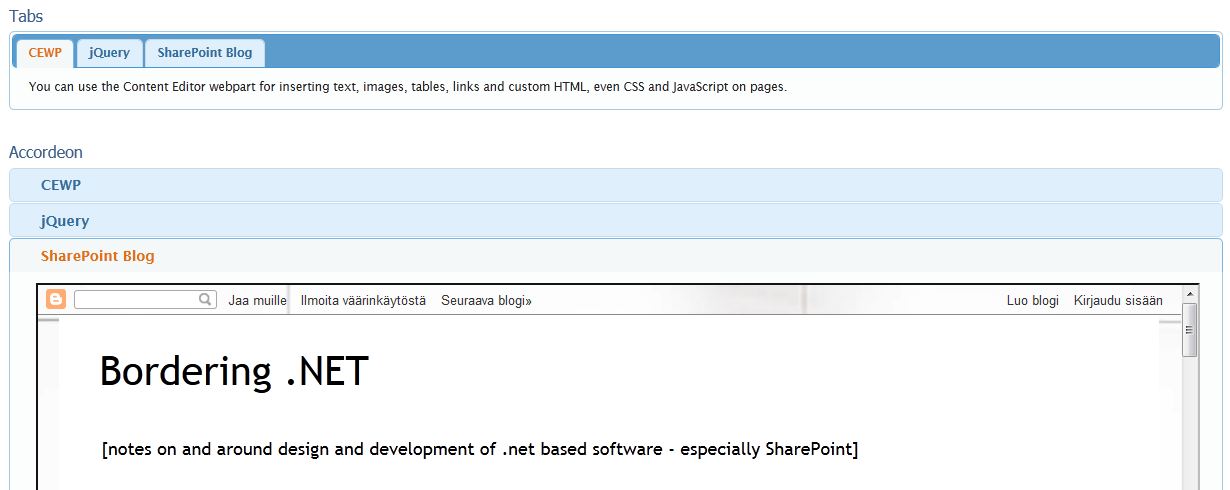
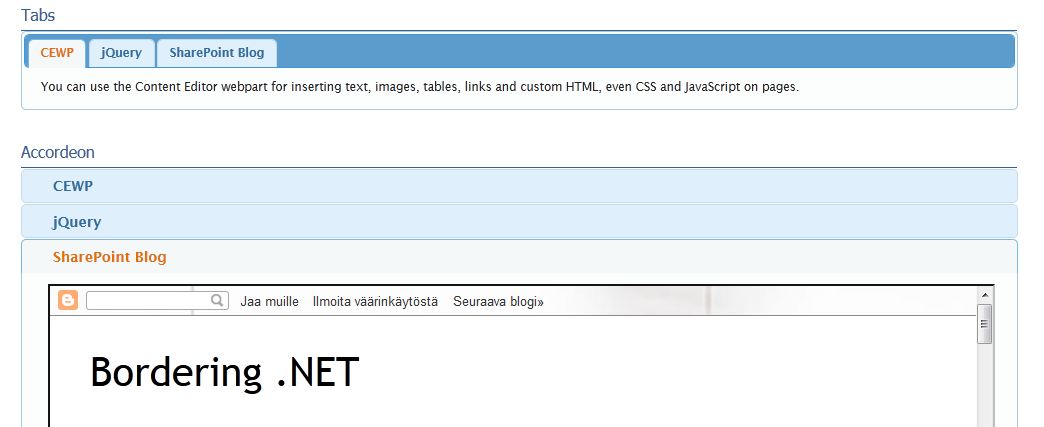
On publishing pages any custom html, css or JavaScript needs to be inserted in a Content Editor Web Part. Then the contents can be edited in a similar way as the contents of a wiki page - except that SharePoint does a little less ripping, so JavaScript can be quite easily inserted too. In my session I demoed a couple different jQuery functionalities:
  • the tabbed or accordion UI (from jQuery UI)

With the jQuery UI, remember the Download tool for getting all the right bits and pieces, and themes too, without needing to copy everything manually!

These are only a couple examples. Exploring the jQuery site and the web more widely, you can find a whole lot of ideas and things to put on your site, and if you learn SharePoint Client Object Model, you can even use the SharePoint libraries and lists in custom functions, e.g. in a picture gallery as above.

Just remember: jQuery shoud be referred to only once per page, otherwise the whole thing goes berserk. See more about JavaScript and SharePoint in my earlier post on the topic. And check out the mobile comaptibility tables to see what the mobile devices support and what not! If you want to really make it happen for the mobile devices too, you might want to consider jQuery Mobile.

JavaScript you can add to pages as demonstrated above, or use it in Web Parts or application pages etc. created in VisualStudio, or add it to a site in an empty module and then delivere it as wsp solutions with features. With the css, you have the possibility to insert it on the page, deliver it in a UI solution or create something in between: an alternate stylesheet. With the alternate stylesheet you get the same css tweaks on every page of your site, or even site collection if you select to inherit the stylesheet  - and you can even manipulate the Web Apps page ribbon to an extent.

The Office Web Apps and Office Web Parts, such as Visio and Excel Web Parts, are more or less untouchables otherwise. You can do some little tricks to the toolbars with css, even with wsp-issued JavaScript, but that's pretty much it. The contents and their styles run down deep in the code, there's no changing e.g. the colors of the Excel chart in the Web Part. Simply does not happen.

The thing to remember with all these customizations is that they are more or less one-time-only. You can copy-paste your html, css, JavaScript etc. and store it in a text file to reuse it (and actually this is highly recommendable even if you only use them in that one site - it's better to edit the text file and then copy-paste it to the page again as it is than try to edit the html that SharePoint has already messed up), but still, it is not an easily maintained reusable content part like a Web Part. So think carefully where the line goes between tweaking and making it for good!

Feb 23, 2012

Using JavaScript in SharePoint Content

With JavaScript, you can boost up your SharePoint page content, take it from being text and images to something interactive and awesome, right? With jQuery it becomes even easier - someone else has already figured out the code, all you need is to copy-paste it to your site, right? More or less, yes. The potential is great, but, how should I put it? There's some quirks involved. (Anyone else having a dêja vu right here?)

Let us start at the beginning. The way to use JavaScript on a SharePoint page is to insert it in the HTML content of a Content Editor Web Part on the page. It works fine on publishing pages and web part pages, but if you try to insert the JavaScript code to the html of a wiki-page, say the home page of a team site, it won't fly. SharePoint edits the page html after you, and while it allows scripts in the html of CEWPs, it doesn't allow them in the wiki content. And it doesn't help to insert a CEWP on the wiki-page, for SharePoint, it does not function there.

We have got as far as understanding that JavaScript is ok in CEWPs. Let's say that you want to be using some jQuery and implement e.g.  three accordions on a single page. With jQuery you need to remember, that you are using a JavaScript library, that normally is referenced only once on a webpage. If you simply copy-paste the jQuery code bits and leave the jQuery reference in situ in all of them, you will run into problems. The browser gets confused and starts reacting funnily to the keyboard, e.g. refreshing a page with F5 might take you to a whole different page.

The thing to do, of course, is to have only one jQuery reference on the page, in the CEWP that the browser reads first, the rest of the CEWPs are able to to use this one reference after the first one makes sure the file gets loaded. Other approaches could be to insert the reference on the page in its own hidden CEWP, thus it is not attached to any single web part using it (and won't get removed if that specific web part gets deleted from the page). Or, if you are building your own master pages and know that you will need the jQuery library, you could insert it to the master pages as well. This might be risky, though, if the content editors creating the jQuery thing-a-ma-jiggies on the pages are not aware of the already existing jQuery reference.

As you go about the inserting some script in a CEWP, I highly recommend you to create a base text file of the scripts + styles + css/js references + the basic html, so that if anything goes wrong, you don't have to start from the scratch all over again. Maybe even include the contents of, say the accordion divs, in the file. When you need to update the content, update the text file and then copy-paste it to the CEWP all over again, deleting all the old stuff first. SharePoint reads the JavaScript when you save the page and inserts all the classes and whatnot that the script feeds to the HTML and for some reason, if you fiddle with the HTML content of the CEWP after SharePoint has fiddled with it, it is bound to break very easily.

One last tip: don't store your JavaScript files in a library that requires publishing and/or approval for the documents. This will only give you problems.

Despite all, have fun with JavaScript and SharePoint! They do work together after you tackle these small details.