Showing posts with label CSS. Show all posts

Dec 10, 2015

Tip: Targeting a specific SharePoint site with global CSS

Just a little css tip, that came out handy today. Generally, with a global css (say, an alternate style sheet that is deployed throughout the site collection), you don't even attempt targeting some specific site, but go with the global styles instead. Today, however, I was struggling to display the titlerow (logo and navigation) in the enterprise search center without having it become visible in the dialogs as well.

Some Microsoft logic it is, I guess, that the search center by default hides the site collection navigation using the same class as the dialogs, the .ms-dialogHidden. And as anyone working with SharePoint CSS knows, the sites have no IDs in the body tag so that you could e.g. tell your css to display the navigation in search site but not in the dialogs. None, except for the action attribute in the form tag.

I guess it never was as big of an issue before, since I never thought of it before, but indeed, in a site collection already populated with sites, you can target one specific site by using the attribute selector for form tag in your css rule, for the form action contains the relative address of the site in it + in SharePoint, the whole page is always inside of that form tag. So here's the rule for un-hiding the titlerow for this specific search center, just as an example:

form[action*="searchcenter"] #s4-titlerow.ms-dialogHidden {
    display: block !important;
}

And, yey, the dialogs remain untouched and furthermore, there is no need to impelemnt page level css on each and every search center page.

Oct 15, 2013

Using Dynamic Navigation to Create a Static Subnavigation with a Little Bit of CSS and no JavaScript

Sometimes I tend to think too complicated. Working with a couple SharePoint navigation customizations involving e.g. a megamenu implementation (btw. I found this blog post highly helpful with that!), I was trying to accomplish something quite simple with a load of jQuery. Most certainly, that would have worked fine too, but when I, for a fleeting moment, wondered why it didn't (eh, I was still missing the jQuery reference), I realized I really did not need it at all.

In this particular case, I needed a two-level navigation, even though there was no real hierarchy, since everything was decidedly in one single team workspace. Yet, there was a logical hierarchy that had to be shown in the left hand side navigation. So, what I did after my futile jQuery excursion, was
  1. to create a hierarchical managed navigation, with the terms pointing to pages that otherwise would have been a flat list in the navigation. 
  2. to use the global navigation in place of the QuickLaunch as the left hand side navigation (in this case, it works much better)
  3. changed the navigation parameters to orientation: horizontal, static display levels: 1, maximum dynamic display levels: 1
  4. picked out the two CSS classes that make the dynamic navigation appear and dispappear:
    li.hover (hover being the class that SharePoint adds to the li.static.dynamic children on hover action)
    and li.hover-off (hover-off being the class that SharePoint adds to the mouseout action)
  5. using the classes above, I set the dynamic navigation to never appear as a dynamic submenu:

    li.hover ul.dynamic, li.hover-off ul.dynamic {
        display:none !important;
        left: -9999px !important;
    }
  6. then I set the dynamic menu of the selected static parent item to be displayed right below the parent item link:
li.selected ul.dynamic, li.selected.hover ul.dynamic, li.selected.hover-off ul.dynamic {
    border: medium none;
    box-shadow: none;
    color: #000000;
    display: block !important;
    left: 0 !important;
    padding: 0;
    position: relative !important;
    top: 0 !important;
}

With a little bit of other CSS modifications to the navigation items (for styling purposes), the menu then looked and behaved like this:


Sep 27, 2013

Inbuilt IE8 hack for SharePoint 2013

Doing yet another UI branding for a customer, and especially the optimzation for each and any Internet Explorer version from 8 on, I stumbled upon something quite interesting and useful too.

I mostly prefer the CSS rule hacks (e.g. using /9 for IE8) over comments and separate stylesheets and/or classes (read more about the options in Web Designer Wall), and try to come up with the most browser-generic solutions as possible. But IE8 is a problem child, that's for sure (fortunately, with SP2013 we don't need to deal with IE7 anymore!). 

The SharePoint team has obviously noted this too. So what I discovered today, when changing the color of the left side of the suite bar (id="suiteBarLeft") is this general class ms-core-needIEFilter that gets inserted to the page by some SharePoint JavaScript when the browser mode is Internet Explorer 8.

For example, this suiteBarLeft just happens to get an IE8 fix for its background, resulting in my custom background color not taking effect. And !important does not do the trick, for the overriding CSS rule is actually a filter rule, not background(-color) rule - which is there too, actually, set to transparent, so the complete fix for the suiteBar backgrouns customization is

.ms-core-needIEFilter #suiteBarLeft {
    filter:none;
    background-color: #92D050;
}


As stated, this class ms-core-needIEFilter exists globally (somewhere - I could not place the class in the DOM tree) on the SharePoint pages when browser is IE8, and thus is quite useful for any IE8 hacks that are needed in any custom UI. I tried out a few, and it works like a dream :)

May 14, 2013

Content Query Web Part Breaks Page Layout in SP2013

Content Search Web Part replaces Content Query Web Parts in SharePoint 2013 on many occasions. This probably is the reason why it has taken this long for me to discover this rather annoying SharePoint bug: Content Query Web Part breaks a page layout built with div-elements, because the default web part (or the XSLTs?) seems to miss a </div> closing tag!

Everything is ok in edit mode, for what ever additional wrapper reasons:


but when I click my way out of edit mode, the page breaks:


In FireBug, I added a </div> tag to the page's source code (which is perfectly ok when no CQWP is added to the page) and this fixes the problem:


In real life, this obviously won't do. So as a workaround, I added a table element to the Page Layout code, inside the div-elements as a wrapper for the web part zones: 

<div id="rightcolumn">
  <table width="100%"><tr><td>
    <div class="ms-webpart-zone ms-fullWidth">
    ...
    </div>
  </td></tr></table>
</div>

Not an especially pretty insert, but the easiest fix I came up with for now.

Mar 15, 2012

Boost Up Your SharePoint

Even though I am very much pro-wsp, that is, building (UI)stuff in SharePoint the "right way", in VisualStudio, and packaging it into a wsp with features, I acknowledge that there are cases and situations where it really is not in the customer's - the SharePoint holder's - best interest to do it the long and expensive way, but instead make a lightweight solution directly in the site.

This - tweaking, enhancing, boosting the existing environment - is what I talked about at Techdays Finland last week. The slideset (in Finnish) can be downloaded from the Techdays site, video will be available later on, and here is a summary in English.

The basic thing to understand is that SharePoint pages are built with html and css, just like other web pages. The frame of the page is the html - xhtml more specifically, unless html5 has already been implemented - of the Masterpage. This you cannot alter - nor any other existing html on the pages - but you can manipulate it with css, and you can add your own html on pages too. 

On a wiki page, the additional css and html are inserted straight to the page by editing the html of the page (you might want to convert it to xhtml first); no Web Parts are needed for this. You could even create your very own Text Layout inside the wiki page by using the One Column Text Layout and then creating your own divs (or table, if you wish) in the html editor. You can hide elements on the page, e.g. the left side navigation (see my earlier post on this) - use IE Developer Toolbar or Firebug etc. to find the elements - but you cannot add JavaScript on the page for SharePoint will rip it out.

(I did not show this own layout as a demo at Techdays - an hour is sooo short!)


Save your layout html (Save and Close, then return to edit mode) before inserting Web Parts in your own divs - otherwise SharePoint just might erase the whole html.

On these wiki page based sites such as Team Sites, you need to create a Web Part Page and use a Content Editor Web Part in order to be able to insert JavaScript on the site. This Web Part Page can be set as the home page of the site in Site Settings > Welcome Page (in Look & Feel category). Another suggested work-around is to add the Javascript references and functions to the page as a linked text file and then call them from the page html. I haven't explored this further myself.

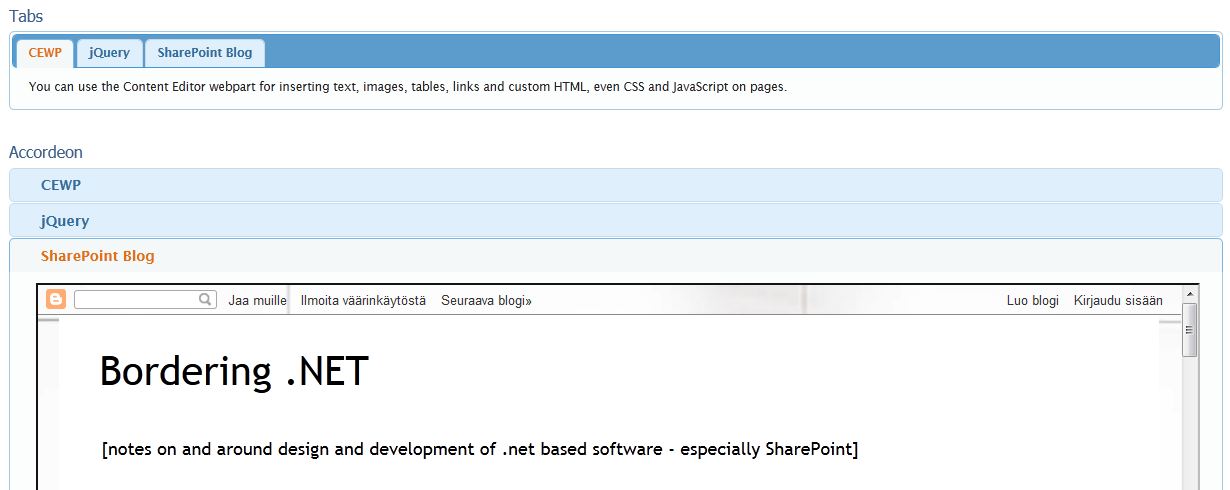
On publishing pages any custom html, css or JavaScript needs to be inserted in a Content Editor Web Part. Then the contents can be edited in a similar way as the contents of a wiki page - except that SharePoint does a little less ripping, so JavaScript can be quite easily inserted too. In my session I demoed a couple different jQuery functionalities:
  • the tabbed or accordion UI (from jQuery UI)

With the jQuery UI, remember the Download tool for getting all the right bits and pieces, and themes too, without needing to copy everything manually!

These are only a couple examples. Exploring the jQuery site and the web more widely, you can find a whole lot of ideas and things to put on your site, and if you learn SharePoint Client Object Model, you can even use the SharePoint libraries and lists in custom functions, e.g. in a picture gallery as above.

Just remember: jQuery shoud be referred to only once per page, otherwise the whole thing goes berserk. See more about JavaScript and SharePoint in my earlier post on the topic. And check out the mobile comaptibility tables to see what the mobile devices support and what not! If you want to really make it happen for the mobile devices too, you might want to consider jQuery Mobile.

JavaScript you can add to pages as demonstrated above, or use it in Web Parts or application pages etc. created in VisualStudio, or add it to a site in an empty module and then delivere it as wsp solutions with features. With the css, you have the possibility to insert it on the page, deliver it in a UI solution or create something in between: an alternate stylesheet. With the alternate stylesheet you get the same css tweaks on every page of your site, or even site collection if you select to inherit the stylesheet  - and you can even manipulate the Web Apps page ribbon to an extent.

The Office Web Apps and Office Web Parts, such as Visio and Excel Web Parts, are more or less untouchables otherwise. You can do some little tricks to the toolbars with css, even with wsp-issued JavaScript, but that's pretty much it. The contents and their styles run down deep in the code, there's no changing e.g. the colors of the Excel chart in the Web Part. Simply does not happen.

The thing to remember with all these customizations is that they are more or less one-time-only. You can copy-paste your html, css, JavaScript etc. and store it in a text file to reuse it (and actually this is highly recommendable even if you only use them in that one site - it's better to edit the text file and then copy-paste it to the page again as it is than try to edit the html that SharePoint has already messed up), but still, it is not an easily maintained reusable content part like a Web Part. So think carefully where the line goes between tweaking and making it for good!