- For basic implementation it really is enough to download the SlickNav package from the web site, and follow the general instructions of usage.
- Include the jquery.slicknav.js and slicknav.css files in your project, as instructed.
- Remember to refer jQuery in your MasterPage along with the SlickNav files.
- As for SharePoint, if using the OOB menus, there obviously is no ul with the id of "menu"; instead you can use "div.ms-core-listMenu-horizontalBox > ul.root" for the element selector and it works like a dream.
- Remember to set the prependTo property for the initializing function, e.g.
prependTo: '#mainnav' - I also found it useful to set the allowParentLinks property to 'true', so users can clikc on the parent links in a similar way as the regular SharePoint navigation
- If you are using dynamic nodes in SharePoint navigation, you need to set the styles for
.slicknav_open ul.dynamic {
top:0;
left:0; }
in order to show the dynamic navigation; otherwise it is still hidden somewhere at left:9999px etc. - The dropdown tends to fall behind the page content, so set the styles for
.slicknav_nav, .slicknav_nav ul {
position: relative;
z-index: 100; } - A varying amount of other css tweaking is needed to make it neat in SharePoint.
[notes on and around design and development of .net based software - especially SharePoint]
Showing posts with label Navigation. Show all posts
Mar 20, 2014
Using SlickNav with SharePoint
Responsive design in the word of the day, and recently full responsiveness has become more and more required in intranets too, and not only in Internet sites. This led me to trying out the SlickNav with a SharePoint site of a customer, and was happily surprised, when everything mostly went in a truly slick manner! Anyone working with SharePoint will, however know, that slick with SharePoint has a whole different meaning than slick in a simple HTML+CSS web site. So a few notes from my journey with SlickNav.
Oct 15, 2013
Using Dynamic Navigation to Create a Static Subnavigation with a Little Bit of CSS and no JavaScript
Sometimes I tend to think too complicated. Working with a couple SharePoint navigation customizations involving e.g. a megamenu implementation (btw. I found this blog post highly helpful with that!), I was trying to accomplish something quite simple with a load of jQuery. Most certainly, that would have worked fine too, but when I, for a fleeting moment, wondered why it didn't (eh, I was still missing the jQuery reference), I realized I really did not need it at all.
In this particular case, I needed a two-level navigation, even though there was no real hierarchy, since everything was decidedly in one single team workspace. Yet, there was a logical hierarchy that had to be shown in the left hand side navigation. So, what I did after my futile jQuery excursion, was
- to create a hierarchical managed navigation, with the terms pointing to pages that otherwise would have been a flat list in the navigation.
- to use the global navigation in place of the QuickLaunch as the left hand side navigation (in this case, it works much better)
- changed the navigation parameters to orientation: horizontal, static display levels: 1, maximum dynamic display levels: 1
- picked out the two CSS classes that make the dynamic navigation appear and dispappear:
li.hover (hover being the class that SharePoint adds to the li.static.dynamic children on hover action)
and li.hover-off (hover-off being the class that SharePoint adds to the mouseout action) - using the classes above, I set the dynamic navigation to never appear as a dynamic submenu:
li.hover ul.dynamic, li.hover-off ul.dynamic {
display:none !important;
left: -9999px !important;
} - then I set the dynamic menu of the selected static parent item to be displayed right below the parent item link:
li.selected ul.dynamic, li.selected.hover ul.dynamic, li.selected.hover-off ul.dynamic {
border: medium none;
box-shadow: none;
color: #000000;
display: block !important;
left: 0 !important;
padding: 0;
position: relative !important;
top: 0 !important;
}
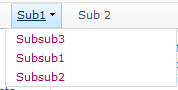
With a little bit of other CSS modifications to the navigation items (for styling purposes), the menu then looked and behaved like this:
Apr 3, 2013
Accordion "Left Navigation" (Quick Launch) for SharePoint 2013
[Edit 7.3.2016: Since posting this, a lot has changed both in the browser and SharePoint world. This still works, at least in IE, but there have been a whole lot of issues with it. Thus I would urge you to consider the solution by MaxYakovenko instead of implementing this one (I am not attempting to solve the issues of this one anymore).]
One of my customers is working on their new SharePoint 2013 intranet site. They needed the Current Navigation (Foundation: Quick Lauch) to be an accordion. We tried a couple different jQuery code bits, but whereas they used to work in SharePoint 2010, in 2013 they only flashed the subnavigation instead of leaving it open.
Googling for one that would work with SharePoint 2013, I found a code snippet in http://joao-pinho.blogspot.de/2012/11/sharepoint-2013-accordion-quicklaunch.html, but it did not do everything as intended (s.o. the links did not function anymore as the click was completely captured by jQuery). So, with a couple modifications:
$(function(){
/*set dynamic css logic*/
if($('#sideNavBox .menu-item.selected').length){
//propagates the selected class, up the three.
$('li.static').removeClass('selected');
$('#sideNavBox .menu-item.selected').parents('li.static').addClass('selected');
//collapses top siblings of selected branch
$('#sideNavBox .menu-item.selected').parents('li.static').last().siblings()
.find('> ul').hide();
}
else $('#sideNavBox .root.static > li.static > ul').hide();
/*set accordion effect*/
$('#sideNavBox .root.static > li.static').each(function(){
if($(this).find('ul').length){
$(this).addClass('father').click(function(){
if($(this).children('ul').css('display') != 'none'){
$(this).removeClass('selected').children('ul').slideUp();
}
else {
/*collapse-siblings*/
$(this).siblings().removeClass('selected').children('ul').slideUp();
/*expand*/
$(this).addClass('selected').children('ul').slideDown();
}
/*added: stop event propagation to link nodes*/
$('a.static').click(function(event) {
event.stopPropagation();
});
/*added*/
return false;
});
}
});
});
This piece of code assumes that the SharePoint navigation levels in the MasterPage are set to 3 static ones and no dynamic levels, the SiteMapProvider is CurrentNavigation, and the navigation settings in the sites are set to:
- SITE WHOSE CHILDREN FORM THE ACCORDION: Structural Navigation: Display only the navigation items below the current site, Show subsites
- ACCORDION HEADING LEVEL SITES (PARENTS): Structural Navigation: Display the current site, the navigation items below the current site, and the current site's siblings, Show subsites
- ACCORDION SUB LEVEL SITES (CHILDREN): Display the same navigation items as the parent site
May 8, 2012
That Darn Navigation!
Earlier, I have written about the two different global navigation controls that can be used in SharePoint 2010 MasterPages, the foundation (v4.master) version, and the publishing navigation. Essentially, they both come out the same, but then again not. In publishing navigation, you can quite easily hide the top level site link, as the site logo quite frequently serves that purpose and thus the link on navigation bar is most often more or less futile and takes up space. In the foundation navigation control, this cannot be done (as easily, maybe? so far I have not figured out a way).
Both controls can be used in any kind of MasterPages, whether targeted to publishing or foundation sites, as long as
a) using the foundation navigation you are ok to display the top level site in the navigation or
b) using the publishing navigation you are either ok with always using the complete global navigation on team sites too, or configure the start node to be displayed and set the static display levels to 2 (otherwise the navigation will be empty when team sites don't use the navigation bar of parent site)
There is just one little problem with the publishing navigation, at least when using the CombinedNavSiteMapProvider, and same applies to GlobalNavSiteMapProvider. When using special characters, such as & marks in the site names, they get html encoded in the navigation bar,
e.g. Test & Try > Test & Try
In the publishing sites, i.e. publishing site targeted MasterPages, you can alternately use the CurrentNavigation as the sitemap provider, which does not have this character problem, but with the foundation sites, this again causes a problem, as Lists, Libraries, Discussions etc. start invading the top navigation!
Finally, after testing out different providers, I found that one option is to revert back to the one used in MOSS 2007: the GlobalNavigation. It works both in foundation and publishing sites, and supports both the special characters and hiding the top level site. So far, I know of no actual problems with it, so here you go:
<publishingnavigation:portalsitemapdatasource id="topSiteMap" runat="server" enableviewstate="false"
sitemapprovider="GlobalNavigation" startfromcurrentnode="true" startingnodeoffset="0"
showstartingnode="false" trimnoncurrenttypes="Heading" />
<!-- top navigation menu (set to use the new Simple Rendering) -->
<SharePoint:AspMenu ID="TopNavigationMenuV4" runat="server" EnableViewState="false"
DataSourceID="topSiteMap" AccessKey="<%$Resources:wss,navigation_accesskey%>"
UseSimpleRendering="true" UseSeparateCSS="false" Orientation="Horizontal" StaticDisplayLevels="1"
MaximumDynamicDisplayLevels="0" SkipLinkText="" CssClass="s4-tn">
</SharePoint:AspMenu>
Mind, that if you want the team sites to use their own instead ot parent's navigation, you still ought to use e.g. the foundation navi control or set the attributes to this navigation as stated earlier.
Aug 25, 2011
Foundation vs. Publishing Navigation Controls
When making a branding solution for SharePoint 2010, there are a couple things to mind with the OOB navigation controls. Although the same navigation used on publishing pages (and provided in Randy Drisgills starter masterpage for publishing sites) works in foundation sites - eg. team sites - too, the proper functionality is still gained only by using the navigation controls used in eg. v4.master. And in the foundation starter master provided by Drisgill.
Left navigation is the more obvious one. Using the pubslishing left navigation does not provide the adequate nav links for team sites, document libraries etc. in any circumstances. And for this reason only, it is pretty much obligatory to include a foundation master page in each branding solution to be used as the system master, even if team sites etc. are not used in the site collection. The document library views use it! And the settings pages as well, if this has not been turned off in the Web Application settings.
As for the main (global) navigation, it is easier to pass without notice. If a foundation master uses the same global navigation as the publishing master, everything will look just fine as long as the foundation site has been set to use the same navigation as the parent (publishing) site. But if you create, say, a team site not using the parent navigation, you might end up with an empty navigation bar, depending on the navigation setting made in the master page.
So, assuming you use the publishing starter master for the branded publishing masters and foundation starter master for the branded foundation masters, the issue should not even exist. But as the branding work goes, at least I like to create the main masterpage from the scratch and then replicate the master page in order to most efficiently get the page structure copied and then do the alterations for the different purposes, eg. add left navigations to them.
So, if you do it like I do, remember to change the main navigation control as well - or atleast change the foundation master navigation settings to show the current node and display 2 static levels - if there is any probability that the team sites might be used without the full main navigation.
[And be sure to insert the references missing from the publishing starter master to the copied foundation master, see Ribbon disabled with Wiki Pages]
[Edit May 8, 2012: A slight special character problem detected with the publishing navigation, see That Darn Navigation!]
[Edit May 8, 2012: A slight special character problem detected with the publishing navigation, see That Darn Navigation!]
May 19, 2011
Subsites in Current vs. Global Navigation
When building your site collection (in SharePoint 2010) using publishing sites, by default, each subsite uses the global navigation of its parent and subsites are visible in navigation . So even when using dropdowns in the global navigation, it is no big deal to change the order of the subsites in the dropdown, for they are visible in the navigation setting by default.
But if you build your site collection using eg. team sites (on SharePoint Server 2010, Foundation is a different story) and still wish to have the same kind of navigation as described above, there's a lot more work to do and everything isn't as obvious.
First of all, of course, you need to activate SharePoint Server Publishing Infrastructure feature in your Site Collection.
Then you need to remember to set each new site to use the navigation of the parent site - which can do in the creation options - plus, if you want the subsites to be visible in the dropdown, you'll need to set that up in the site navigation settings after creating the site.

Doing this, everything seems to be just dandy. The subsites appear in the dropdowns as they should. But what about when you want to change the order of the subsites in the dropdown? You can't see them in the navigation settings of the top level site. You can't even see them in the navigation setting of the parent site for the subsites in the dropdown. The Show subsites is seledted, but...?
Subsites aren't really a part of the global navigation even though you can choose to display them in it. They are a part of the Current navigation sitemap. So, in order to change the order of the subsites in the global navigation, you actually need to change their order in the Current navigation. Which means that in the navigation setting of the parent site you need to select Show subsites in the Current navigation settings:

This will of course display the subsites in the navigation editing and sorting box and allow you to re-organize them. This setting, however, also results in the subsites being displayed in the quicklaunch navigaton. Maybe you want it to be so, maybe you don't. If you don't, then simply de-select the Show subsites checkbox after re-organizing the sites. The order will still be preserved when you click ok, and be applied to the global navigation dropdown.
-->

May 18, 2010
Full bread crumb trail for SharePoint 2010?
SharePoint 2010 doesn't include the same kind of bread crumb trail in it's master page as MOSS2007 did. However, the default.master in 2010 does include it so if you or your customer should want to have a full bread crumb trail on your siter, you can always dig the SDK for it or copy the original from the default.master - which I found easier and faster:
asp:sitemappath id="ContentMap" nodestyle-cssclass="ms-sitemapdirectional" runat="server" sitemapprovider="SPContentMapProvider" skiplinktext="" -- /asp:sitemappath
[edit: May 19. 2011
[edit: May 19. 2011
At some point this year one of my customers wanted to have the same breadcrumb displayed on every site in their environment, independent of the type of the site. This caused a problem: the publishing version wasn't sufficient, but the classic version shows too much (displays the Pages library in the breadcrumb). So I found the solution in a custom breadcrumb, made by the guys at Sininen Meteoriitti:
http://www.sharepointblues.com/2010/02/08/a-single-breadcrumb-for-all-sharepoint-pages/
edit: April 16. 2012
After using the custom breadcrumb by Sininen Meteoriitti for a while, I discovered that I actually don't need any custom classes, custom code, to achieve what I needed. It took me this long to write about it, but now it is in my blog: A Consistent Breadcrumb Trail Experience]
edit: April 16. 2012
After using the custom breadcrumb by Sininen Meteoriitti for a while, I discovered that I actually don't need any custom classes, custom code, to achieve what I needed. It took me this long to write about it, but now it is in my blog: A Consistent Breadcrumb Trail Experience]
Subscribe to:
Posts (Atom)