As a professional doing SharePoint branding solutions, my first question here was "why? why would I want to do it like that?" And after trying it out, I concluded that most probably in most cases I wouldn't. But it doesn't mean that someone else wouldn't.
Let's take a look at this scenario:
There is company A who decides to go into SharePoint Online with their intranet site. They use an advertizing company B in all their design, web and otherwise. So with this new intranet project they turn to their ad company B for a fresh design for the intranet in Office 365 SharePoint Online.
With 2010, what would've happened is that the ad company B would've made a nice intranet site design, which would've been delivered to company A as image files and probably a PhotoShop layout file. The company A would've partenerd up with company C to create the branding for the site as a sandbox solution since you cannot deploy farm solutions to SharePoint Online.
With SharePoint 2013 one would need to rethink the usage of sandbox solutions: Microsoft claims in msdn and technet articles that sandbox solutions have been depracated in SharePoint 2013 [edit. Jan.3rd 2013: this information does not exist anymore], but there is controversial information around the interwebs about whether they actually are dead or not. Be as it may, we pretty much ought to forget about creating a sandbox branding solution for SharePoint 2013. So then, what are the options?

The look and feel of the controls can be customized before copy-pasting the code snippet to the MasterPage. But this creates a whole lot of inline styling to the control, on the MasterPage, so if later on company A decides to do a facelift to their site, instead of some centralized changes in the CSS file, the actual MasterPage needs to be edited.
With this, I also encountered a problem that if I changed the inline code straight on the MasterPage, my changes did not take effect; I needed to customize and copy-paste the snippet all over again (don't know if that was some bug of that specific environment; it was RTM, though).

Which means that you need to open the file form the Master Pages and Page Layouts Gallery. Unfortunately there still is no way to open a file for editing if you open this gallery in the browser (like the Design Manager suggests), so you are faced with a few options:
After tackling these two issues in a satisfactory manner, you are well on the track with creating the MasterPages as HTML instead of using Visual Studio to create .master files. There is a time and a place for everything, and that applies to HTML MasterPages too. Oh, and mind you: the Design Manager is only available on publishing sites (or when publishing infrastucture is enabled).
Let's take a look at this scenario:
There is company A who decides to go into SharePoint Online with their intranet site. They use an advertizing company B in all their design, web and otherwise. So with this new intranet project they turn to their ad company B for a fresh design for the intranet in Office 365 SharePoint Online.
With 2010, what would've happened is that the ad company B would've made a nice intranet site design, which would've been delivered to company A as image files and probably a PhotoShop layout file. The company A would've partenerd up with company C to create the branding for the site as a sandbox solution since you cannot deploy farm solutions to SharePoint Online.
With SharePoint 2013 one would need to rethink the usage of sandbox solutions: Microsoft claims in msdn and technet articles that sandbox solutions have been depracated in SharePoint 2013 [edit. Jan.3rd 2013: this information does not exist anymore], but there is controversial information around the interwebs about whether they actually are dead or not. Be as it may, we pretty much ought to forget about creating a sandbox branding solution for SharePoint 2013. So then, what are the options?
- The ad company B designs the layout as a PhotoShop file, delivers it to company A, who then delivers it to company C where the branding dude creates a MasterPage out of the layout file. And if and since sandbox solutions are out of the equasion, the branding package will most probably be created as a Design Package. (Stay tuned: I will be posting an article about them too sometime in the near future)
The branding dude (or dudette ;) ) here has an option: (s)he can either go with a .master MasterPage, or create an HTML MasterPage and use the SharePoint conversion and the snippets provided by SharePoint in Design Manager. - The ad company B has a web designer who goes to the extent of creating the HTML frame (and probably also the CSS style sheet) and delivers these to company A together with all the graphics that are needed.
Now, if company A happens to have an employee, who understands enough both SharePoint and HTML (and CSS) to go through creating the Design Package himself, probably the task would stay in-house. Pretty much the same way as some companies have created their SharePoint (Online) 2010 UIs with SharePoint Designer 2010 when there was a capable person on the payroll.
If they don't have the recourses to do this in-house, then the HTML and CSS etc. would again need to be delivered to company C, to the hands of the branding dude(tte). And then again, (s)he would still have the choice to extract and import the HTML to a .master or to use the HTML as is and let SharePoint take care of the conversion.
On both occasions, I have stressed the still standing option of creating and using a .master instead of the HTML with the snippets. The reason behind this is that I don't see the latter option necessarily as the best one when the one creating the MasterPage is actually capable of doing it the old-fashioned way. Why is this?
Because, even though the converted HTML Master is a completely valid MasterPage, and the snippets relatively easy to add per se, the process is not an altogether simple one.

With this, I also encountered a problem that if I changed the inline code straight on the MasterPage, my changes did not take effect; I needed to customize and copy-paste the snippet all over again (don't know if that was some bug of that specific environment; it was RTM, though).
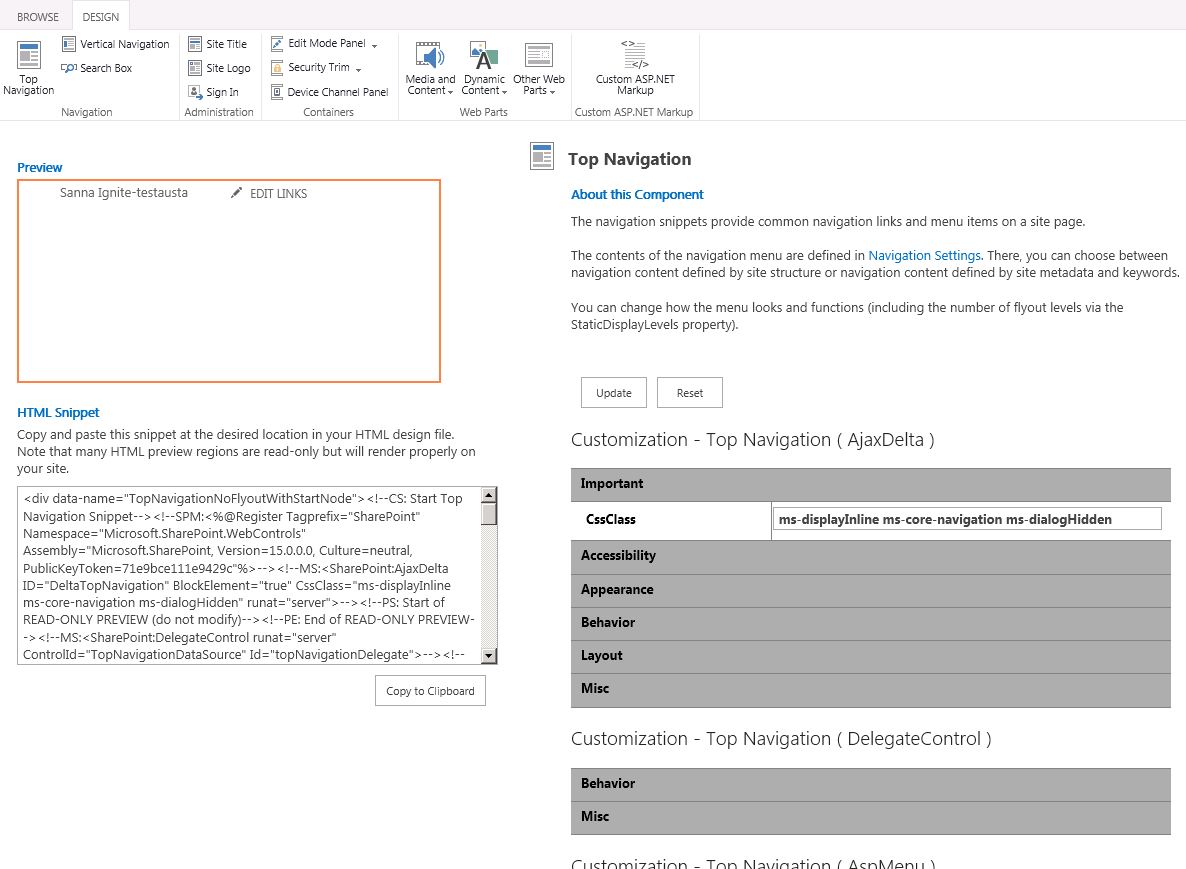
You can preview the MasterPage in the browser while working with the snippets. But in order to do that, you need to open the converted HTML file for editing ( edit the masterpage, you DO NOT open the .master file).
Which means that you need to open the file form the Master Pages and Page Layouts Gallery. Unfortunately there still is no way to open a file for editing if you open this gallery in the browser (like the Design Manager suggests), so you are faced with a few options:
- you can download a local copy of the HTML file, insert the snippets, save locally and occasionally upload a new version of the file to the gallery. This takes away from the instant preview, though.
- you can map the gallery as a network drive in your Windows Explorer. This may not be the first thing I would reccomend, but it allows you to open the HTML file in your preferred HTML editor, whether it be Notepad or Dreamweaver or Expression Web or whatnot - but not SharePoint Designer 2013, not with this option.
This enables the instant preview since you are editing the file straight from the gallery. - you can open the Site Collection in SharePoint Designer 2013, navigate to the Master Pages Gallery and open your HTML file for editing in SPD. This prevails the instant preview. But remember, there is no wysiwyg editor in SharePoint Designer anymore in version 2013.
After tackling these two issues in a satisfactory manner, you are well on the track with creating the MasterPages as HTML instead of using Visual Studio to create .master files. There is a time and a place for everything, and that applies to HTML MasterPages too. Oh, and mind you: the Design Manager is only available on publishing sites (or when publishing infrastucture is enabled).


