Showing posts with label Deployment. Show all posts

Jan 18, 2012

Setting MasterPages to Sites Automatically

I have addressed this topic before in the article Automatize MasterPages in SiteDefinitions, but taking a little bit different viewpoint here, let's take a look at how to achieve this without custom Site Definitions. There are cases where custom Site Definitions are needed, of course, and in those cases, the feature stapling as described in the other article might be the way to go. Might be, I say, for it still isn't necessarily the best way, or needed, if the master pages are otherwise automatized throughout the Site Collection, as I will describe in this article.

For instructions on creating the basic custom UI solution, see Creating a Custom UI Solution for SharePoint.

With the masterpages done and other elements in order as well, it is time to deploy the solution. The solution contains a feature, and the activation of this feature will add the MasterPages and possible PageLayouts in the MasterPage Gallery of the SiteCollection, but unless we have a feature receiver to go with the feature, the rest is manual work.

To better understand the different MasterPages and their behavior on different types of sites, see About SharePoint 2010 MasterPages.

The first step for MasterPage automatization is to create a feature receiver that sets the MasterPages for the sites when feature is activated. Note, that if the feature is scoped as Web, it needs to be activated on each site separately. If it is scoped as Site, it is activated only once for the Site Collection and sets only the MasterPages of existing sites.

Add a feature receiver to the feature by right-clicking the feature > Add Event Receiver. Uncomment the FeatureActivated and FeatureDeactivated methods. For the FeatureActivated, insert the following code:


Note, that the MasterUrl sets the System Master and the CustomMasterUrl sets the Site Master. Foundation sites do not use the CustomMasterUrl at all, but it doesn't matter that it is set on those sites too.

For the deactivation method, copy-paste the same code, but change the MasterPages to e.g. v4.master and nightandday.master.

If we want to take this one step further, we can do some site identifying and set different MasterPages for different sites by their ID. E.g. the search site needs its own MasterPage, so we could add some code to the feature receiver so that it sets the search sites to use the custom search master, or if there is none, to keep using the default minimal.master:


You can check other site IDs e.g. in this article: Know the site template used for the SharePoint site.

Update your deactivation method likewise.

The feature receiver takes us as far as taking care of the existing sites. Next, let's take care of the new ones. Add an Event Receiver in your project:
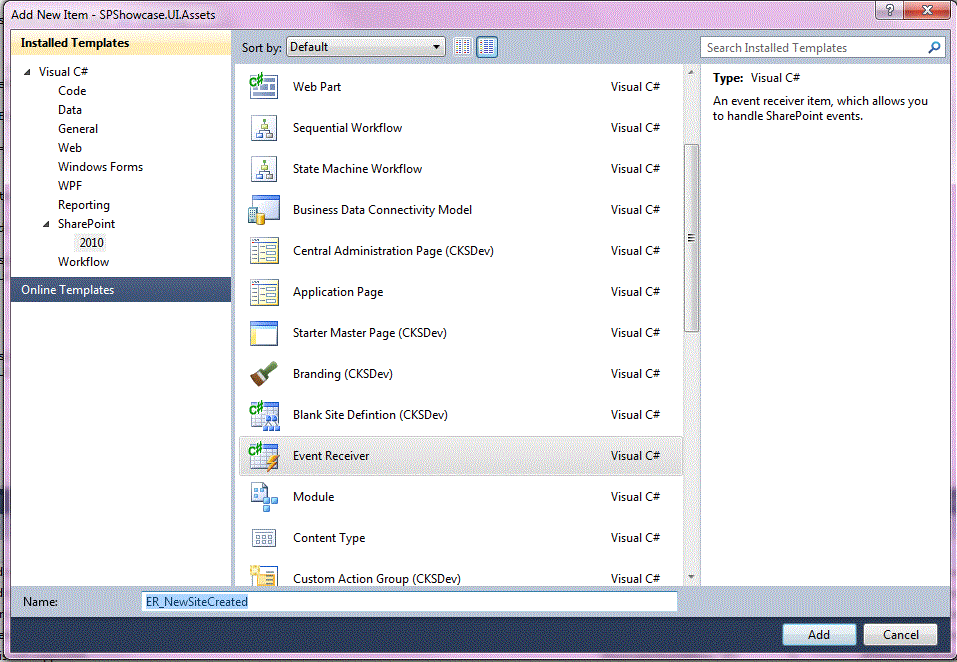

Select Web Events, A site was provisioned:


Replace the default content of the method by the following code:


If you didn't use any ID-specific MasterPage settings in the feature receiver, you can disregard the if-else here too.

Jun 16, 2010

Automatize MasterPages in SiteDefinitions

When building a branded SharePoint2010 solution, the customization of Master Pages is the issue. And as I've stated in a former blog post, one Master Page is seldom enough. In the least, the Search Center needs one of it's own. And maybe we need a customized Team Site? Or two? And one for BI reports? Etc.

Basically, when creating a branding solution - or any solution - you will want to use a feature. And preferably package it all into a wsp package, neat to deploy. It used to be complicated with a lot of handi-work when creating these in VisualStudio, but not anymore. VisualStudio2010 contains SharePoint 2010 project templates natively, adds many of the needed xml files, fills in features by demand, creates the wsp package... and makes SharePoint development extremely flexible by deploying the solution to your development environment with one click, activating your features on the go!

Thus, though, it is easy for a developer to forget a couple essential things for when the time comes to deploy the solution to the test environment of the customer.

1) It's rather convenient to set your features to activate whenever a site of the type is created. This is done by adding a sigle (or two, with the commentation of the code) line in the onet.xml file of the site definition:

inside the web or site (depending on the scope of your feature) features collection of your site definition configuration(s).

2) Create a feature receiver. The automatic activation of a feature is next to nothing it nothing happens. A feature receiver defines what happens when the feature is activated, eg. the MasterPages to use and where. In the simplest scenario, it defines one master page for the whole web. But it's not a big deal to make it acknowledge the different site definitions you've created. This way you can package them all in one feature instead of a minion.

In my example here, there is custom team site and a custom search center site defined with their own master pages plus the overall portal master page used everywhere else (for accuracy, I used the custom WebTemplateId's of my SiteDefinitions instead of WebTemplate names - possible also, but didn't work for me)


The code exerpt above is only the first half, you need to define likewise what to do when the feature gets deactivated.

[Edit. Jan 18th, 2012
For MasterPage automatization withour custom SiteTemplates, see Setting MasterPages to Sites Automatically.]